
Pro Plan Custom Font
Creating rich-text-style labels, schedules, and superscript with a remapped custom font
The PPX18 custom font is what makes rich-text-style room labels and schedules possible and provides the full-height superscript used in window and door labels. Chief Architect cannot create this exact combination of smaller inline text, larger bold text, and superscript through its ordinary label formatting alone.
How the custom font system works
The custom font contains resized alphanumeric characters mapped to a different part of the font file. PPX18 helper macros take Chief Architect's normal output and redirect selected characters to that remapped area. The result looks like multiple text sizes and weights inside one automatic label while the label remains connected to the PPX18 reporting system.
PPX18 is supplied for Arial. The Rabbitt custom font is an Arial-based font containing the required remapping. If your branding uses a different font, or you simply prefer another typeface, you must generate a PPX18-compatible custom font from that font file.
Create a custom font with FontForge
Download the font file you want to use and save it in a known location on your computer.
In the Step 1 folder of the PPX18 installation package, open the Custom Font folder and locate the supplied Python script and its instructions.
Install and open FontForge, the free open-source font editor.
In FontForge, choose File > Execute Script.
Open the supplied Python file in a text editor, copy all of its text, and paste it into FontForge's Execute Script window.
Run the script. FontForge may show non-blocking warnings during the process; if the script completes and produces the prepared font, continue with the generation step shown in the video.
Choose File > Generate Fonts and generate the finished font file.
Install the generated font on the computer, restart Chief Architect if it was open, and apply the generated PPX18-compatible font to the applicable PPX18 text styles.
Use uppercase PPX18 labels
Do not enable the Uppercase checkbox in a Chief Architect text style. That setting does not work correctly with the remapped characters used by the PPX18 rich-text-style system.
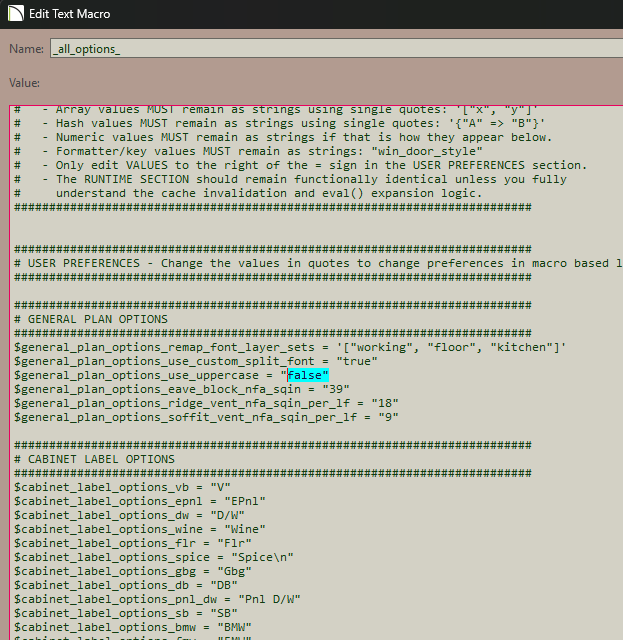
Instead, open the _all_options_ macro and set $general_plan_options_use_uppercase to 'true' under General Plan Options. Preserve the variable name, quotation marks, and spelling exactly, then save the macro and allow the affected labels and schedules to reevaluate.
Applicable: the custom font supports the included smart-label and schedule formatting.
Essentials package: a stripped-down working plan, companion As-Built file, Title Block and Spec Plan, plus Rexel ANSI B (11 × 17) and Rexel ARCH D layouts. It includes no PPX18 toolbars or library items.