
Remodel Workflow, As-Built vs Proposed
Moving the completed as-built model between the PPX18 -N and -AB plan files
Choose which file you want to work in
A PPX18 remodel project includes a proposed plan file ending in -N and an as-built plan file ending in -AB. You can draw the existing conditions in either file. When the as-built model is complete, use Replace With to copy that completed model into the other plan file before beginning the proposed scope of work.
Preferred workflow: draw the as-built in the -N file
Rene's preferred workflow is to draw the as-built conditions in the -N file. When the as-built drawing is complete, replace the contents of the -AB file with the -N file. The open -N file remains unchanged and becomes the active file used to continue drawing the proposed work.
Complete the as-built model in the proposed plan file whose name ends in -N.
In the Project Browser, right-click the plan file whose name ends in -AB. This is the destination file whose contents will be replaced.
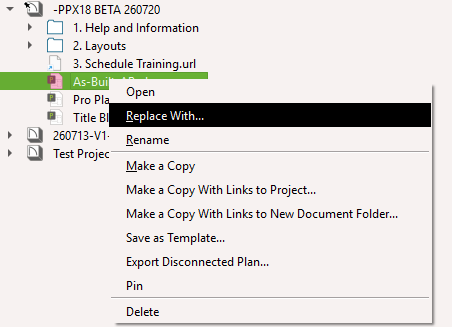
Choose Replace With.
Chief Architect warns that the -AB file is used by the listed layouts and asks whether you are sure you want to replace it. This warning is expected. Review that you selected the -AB destination, then click Replace.
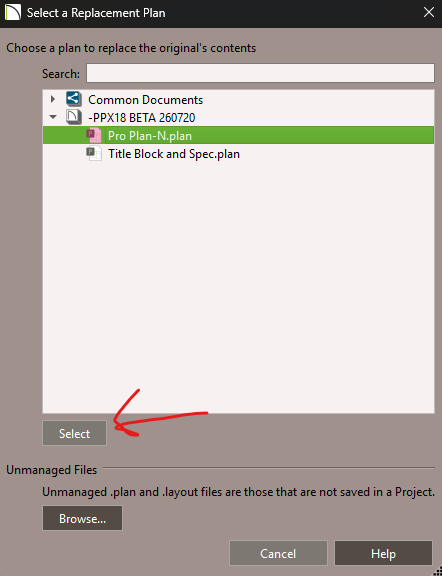
In Select a Replacement Plan, expand the PPX18 project and select the completed -N plan file.
Click Select to commit the Replace With action.
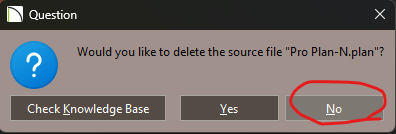
When asked whether to delete the source -N file, click No. Do not delete it; this is the file you will continue using for the proposed scope of work.
What Replace With accomplishes
This is the closest Managed Mode equivalent to Save As for this workflow. The -AB destination receives the completed contents of the -N source while retaining its role as the as-built file linked to the PPX18 layouts. The active -N source remains available and unchanged, so you can immediately continue developing the proposed design there.
Inverse workflow: draw the as-built in the -AB file
The same process works in reverse. You may draw the existing conditions in the -AB file, then right-click the -N destination and choose Replace With. Select the completed -AB file as the replacement source, commit the replacement, and choose No when asked whether to delete the source. You can then work in the -N file on the proposed design.
Verify before continuing
Before editing the proposed scope, open both files and confirm that they contain the completed as-built model. Confirm that the -AB file still supplies the intended as-built layout views and that the -N file is the file you intend to use for proposed work.
Applicable: Essentials includes both an As-Built file and a stripped-down working plan, so the As-Built versus proposed workflow applies.
Essentials package: a stripped-down working plan, companion As-Built file, Title Block and Spec Plan, plus Rexel ANSI B (11 × 17) and Rexel ARCH D layouts. It includes no PPX18 toolbars or library items.