

Spec Plan: Project Information
Using project location and Code Criteria to control PPX18 specification writing
Enter the information used by the Spec Plan
Project Information supplies the location, jurisdiction, and code criteria that PPX18 uses to prepare the Spec Plan. Enter the current project values here before reviewing the specifications. The final specifications must always be checked for the project and permitting jurisdiction before issuance.
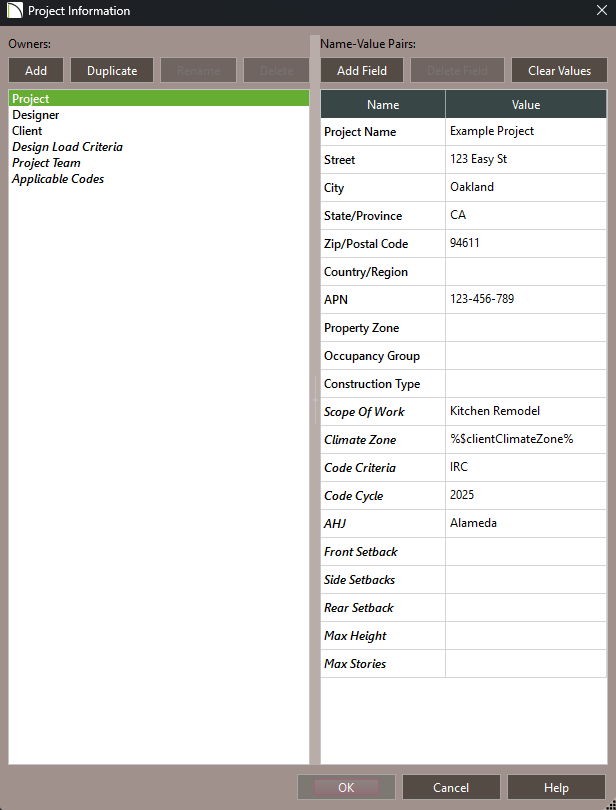
Open Project Information
Open the PPX18 Pro Plan or the project plan that contains the Spec Plan.
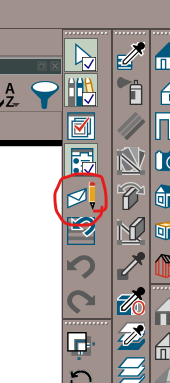
Click the pencil-and-envelope Project Information button in the toolbar.
Select an Owner on the left, then enter or revise its fields in the Value column on the right. Preserve the supplied field names and enter plain values only.
Title Block and Logo
The logo stored in the Spec Plan is automatically sent to the title block on every PPX18 layout. Replace it once in the Spec Plan, then inspect a layout to confirm that its size and appearance work with your selected title-block style.
Open the logo Picture Box Specification dialog and click Select or Import to choose your logo file.
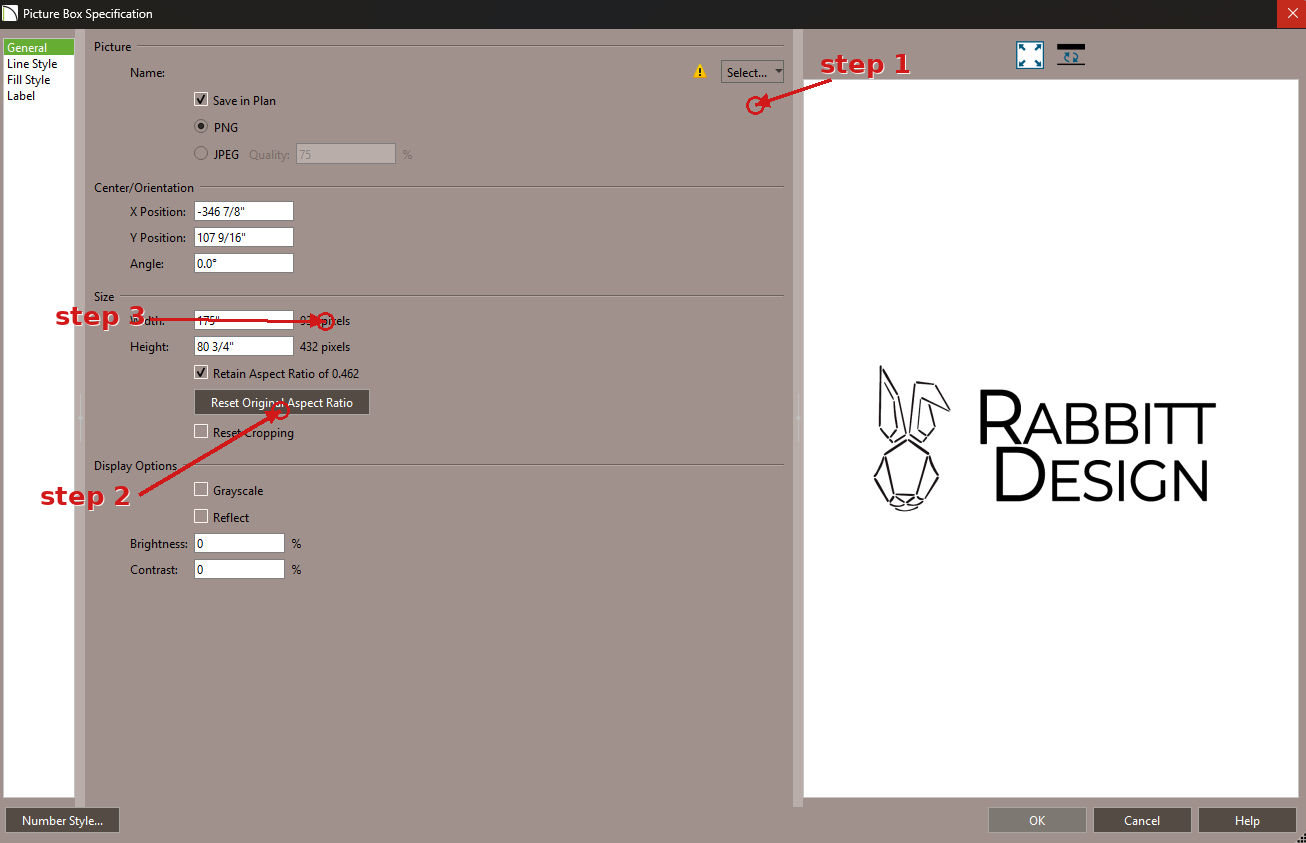
A PNG file with a transparent background is recommended when the logo should appear without a visible box or background on the layout.
After importing the logo, open the Size section and click Reset Original Aspect Ratio so the logo returns to its correct proportions.
Keep Retain Aspect Ratio enabled. Limit the logo to a maximum width of 175 inches or a maximum height of 80 inches, using whichever limit is reached first.
Open a PPX18 layout and examine the logo in the title block. If the source image contains a large amount of empty white or transparent space around the artwork, the Picture Box may need to be larger for the visible logo to appear at the intended size.
Make small size adjustments and recheck the layout until the logo is clear, properly proportioned, and contained within the title-block area.
What the Project fields control
State/Province
Identifies the project state or province. PPX18 uses this with the country, ZIP/postal code, and AHJ to establish the appropriate jurisdictional and climate information. Enter the full name or customary abbreviation consistently.
Country/Region
Identifies the project country or region. This helps distinguish Canadian code criteria from United States code language. Enter the actual project country rather than the office location.
Zip/Postal Code
Provides the geographic lookup used by supported state climate-zone macros. For a United States project, enter the correct five-digit ZIP code. The climate zone shown in the Spec Plan should change when the current project location changes and the macros reevaluate.
AHJ
AHJ means Authority Having Jurisdiction. Enter the city, county, municipality, or permitting authority responsible for the project. Supported location lookups use this value when a state requires a more specific jurisdictional match.
Code Criteria
Code Criteria is the selector for the PPX18 specification and Applicable Codes systems. Enter one of the three supplied values in the Project Owner panel: IRC for the standard United States criteria, CRC for the California criteria, or NBC for the Canadian criteria. The out-of-box PPX18 setting is IRC.
The selected value determines which prepared specification section is used and which Applicable Codes Owner panel supplies the code list. Preserve the exact IRC, CRC, or NBC spelling, then allow the Spec Plan and layout to refresh before reviewing the result.
Applicable Codes
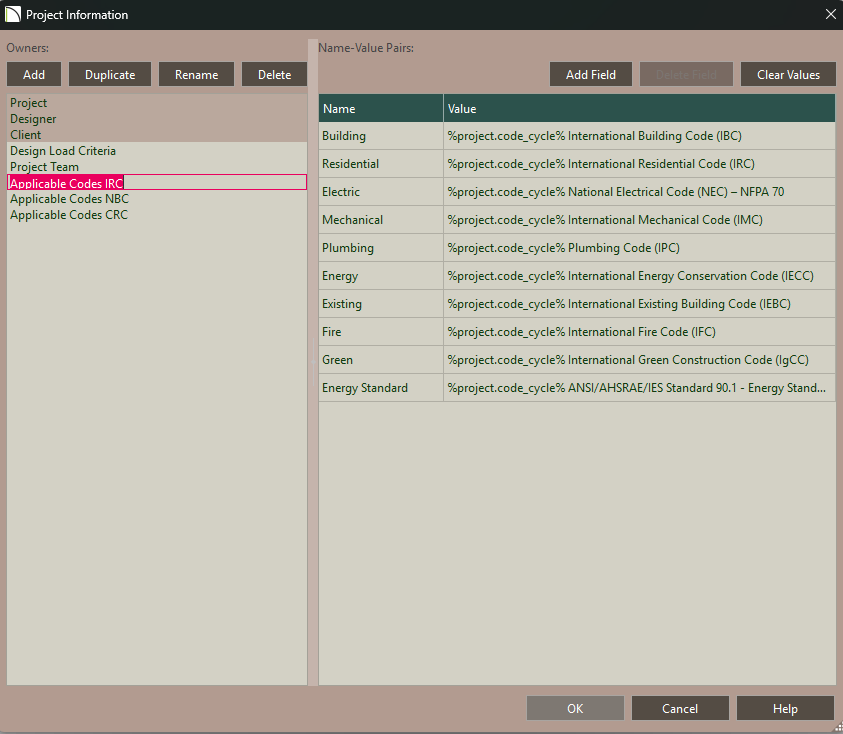
The Spec Plan uses one CAD Detail named Auto - Applicable Codes. Its content comes directly from the Applicable Codes Owner panel that matches the Code Criteria value in the Project Owner panel. IRC uses Applicable Codes IRC, CRC uses Applicable Codes CRC, and NBC uses Applicable Codes NBC.
Open Project Information and select the matching Applicable Codes Owner. Enter the preferred Building, Residential, Electrical, Mechanical, Plumbing, Energy, Existing, Fire, Green, Energy Standard, and other code descriptions in the Value column. The system does not interpret or rewrite these individual entries; it displays the values stored in the selected Owner panel.
Code Cycle
The project code cycle comes directly from the Code Cycle field in the Project Owner panel. The supplied Applicable Codes values include the %project.code_cycle% reference before each code description so the selected year is inserted consistently throughout the list.
In Project Information, select Project under Owners and enter the adopted year in the Code Cycle Value field.
Leave the %project.code_cycle% reference intact in the Applicable Codes values unless you intentionally want a particular line to use different text.
If one code needs a different cycle year, open the matching Applicable Codes Owner and replace %project.code_cycle% only in that code’s Value field with the required year. The remaining Applicable Codes fields will continue using the project-wide Code Cycle value.
The Auto - Applicable Codes CAD Detail remains linked in the Spec Plan and layouts. Change Code Criteria, Code Cycle, or the selected Applicable Codes Owner values in Project Information, then refresh the plan or layout and verify the complete list. No layout-box relinking is required.
Climate Zone
The climate-zone output is resolved from the current project location rather than from one specific city. PPX18 reads State/Province and ZIP/Postal Code and, where supported, the AHJ to return the appropriate climate zone. Confirm that all location fields are correct, refresh the plan, and verify the reported climate zone before issuance.
Choose how much to customize
Each specification macro includes instructions that an AI editor can use to understand its purpose, required values, and editing limits. An experienced user can copy the relevant macros into an AI service and request a coordinated rewrite for a state, country, AHJ, or a custom IRC, NEC, or other office specification set. Ask for the complete revised macro, preserve its required names and connections, and test every affected Spec CAD Detail afterward.
If your office works in only one AHJ and does not need automatic jurisdiction switching, the simpler option is to write and maintain your preferred specification text directly in the Spec CAD Details.
Always verify the result
These fields and macros help populate specifications; they do not confirm code compliance. Check the selected code criteria, climate zone, adopted editions, local amendments, electrical requirements, and every final note against the current requirements of the project AHJ.
AI skills and integrationsApplicable: Essentials includes the Title Block and Spec Plan, including its Project Information workflow.
Essentials package: a stripped-down working plan, companion As-Built file, Title Block and Spec Plan, plus Rexel ANSI B (11 × 17) and Rexel ARCH D layouts. It includes no PPX18 toolbars or library items.