

Tags & library search
Tags, stacking tags, library search, and Boolean searches
TAGS
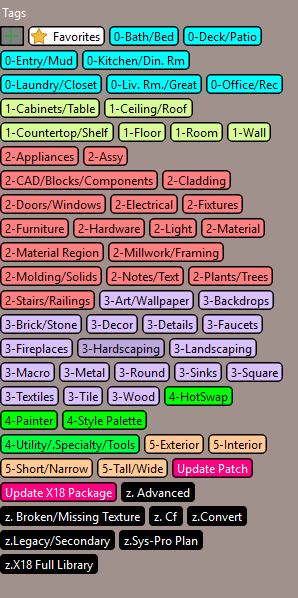
Please turn on the display of Tags in your Library Settings Tags are meant to“stack” or be added together and follow the logic listed below
“0-” Suffix is for Room Type designations
“1-” Suffix is for mounting options that correlate with symbols
“2-” Suffix are symbol/object classifications
“3-” Are categories
“4-” Are specific to Rabbitt Design and indicate a type of utility that a
symbol might have. See more information below
“5-” Are characteristics
“z.” Are largely internal tags for System bug reporting and repairs
“4-”Prefix Breakdown
“HotSwap” indicates an element that when selected can hover
over something in a 3d view and toggles a swap cursor animation For instance, many of our systems utilize cabinets to represent other items. Something that is dynamic about cabinets is the hover click and replace or toggle replacement mode function of cabinet doors. Similar to replacing a panel on a railing
Stacking Tags
This is just a term we use to say combine your tags.
Some common stacks to try
Wall+Light+Interior for interior sconces Floor+Material+Exterior For exterior floor surfaces Countertop/Shelf+Decor for decorations that sit on cabinet countertops or tabletops Countertop/Shelf+Painter for the Shelf Painter Tools
Countertop/Shelf+CAD/Blocks/Components+Short/Narrow
for the 15" wide swappable shelf items that work with the shelf painter
“Painter” represents a sprayer tool built from Style Palette. These
are tagged Painter because they are specifically something meant to be used as a utility to convert a Cabinet /Window /Door /Room /Backsplash /Countertop to something else. Painters are always part of a large system that includes component assemblies Tags may change over time with updates
“Style Palette” represents a sprayer tool built from Style Palette
that is meant to change the style of something which was the original intent of the tool. Like changing from Craftsman to
Victorian
“Utility/Specialty/Tools” are single one off tools that provide utility.
Stack your tag to narrow your results
SEARCH TIPS
BOOLEAN SEARCHES
All Rabbitt Design items can be searched by adding the prefix“RD” to your search term. Such as RDStucco Additionally you can add Rab to any search, such as“Sofa Rab”
Combined with a search term, you can add in a filter by searching object classifications such as“Type” or“Symbol Type”.
For example, search RDtoi, followed by Type:Fixture and you will most certainly find a toilet fixture in the Rabbitt Design Library Chief Architect’s Library excepts Boolean operators. This means you can search using OR or | and NOT or! and AND Give it a shot. You can search toi OR bat to find either toilets or baths.
Add in some more complex Boolean searches and you can really find some unique items very quickly Toi OR (Bat NOT Koh) OR soap will find toilets made by any manufacturer, baths not made by Kohler, or Soap dishes.
Add in limiters like symbol type and you have a very specific search. This should help you find exactly what you need very efficiently
Not included: Essentials has no supplied library items, so the PPX18 tagging and Library Browser organization system is not part of this plan.
Essentials package: a stripped-down working plan, companion As-Built file, Title Block and Spec Plan, plus Rexel ANSI B (11 × 17) and Rexel ARCH D layouts. It includes no PPX18 toolbars or library items.