

Macro Modification
Safely exporting, editing, reimporting, and testing connected PPX18 macros
PPX18 macros are connected systems rather than isolated pieces of text. The notes at the top of each prepared macro act as a breadcrumb trail: they identify the other macros that the selected macro calls, depends on, or supplies information to. Use that dependency list to export the complete working group before asking an AI editor to make a change.
1. Identify the complete macro group
Open CAD > Text > Text Macro Management and select the macro whose behavior you want to change.
Read the notes at the top of Macro Value, especially the AI Context and Cross-Macro Dependencies section.
Write down or select every dependency and related caller named there. If the notes say a macro is included in the export, keep it with the group.
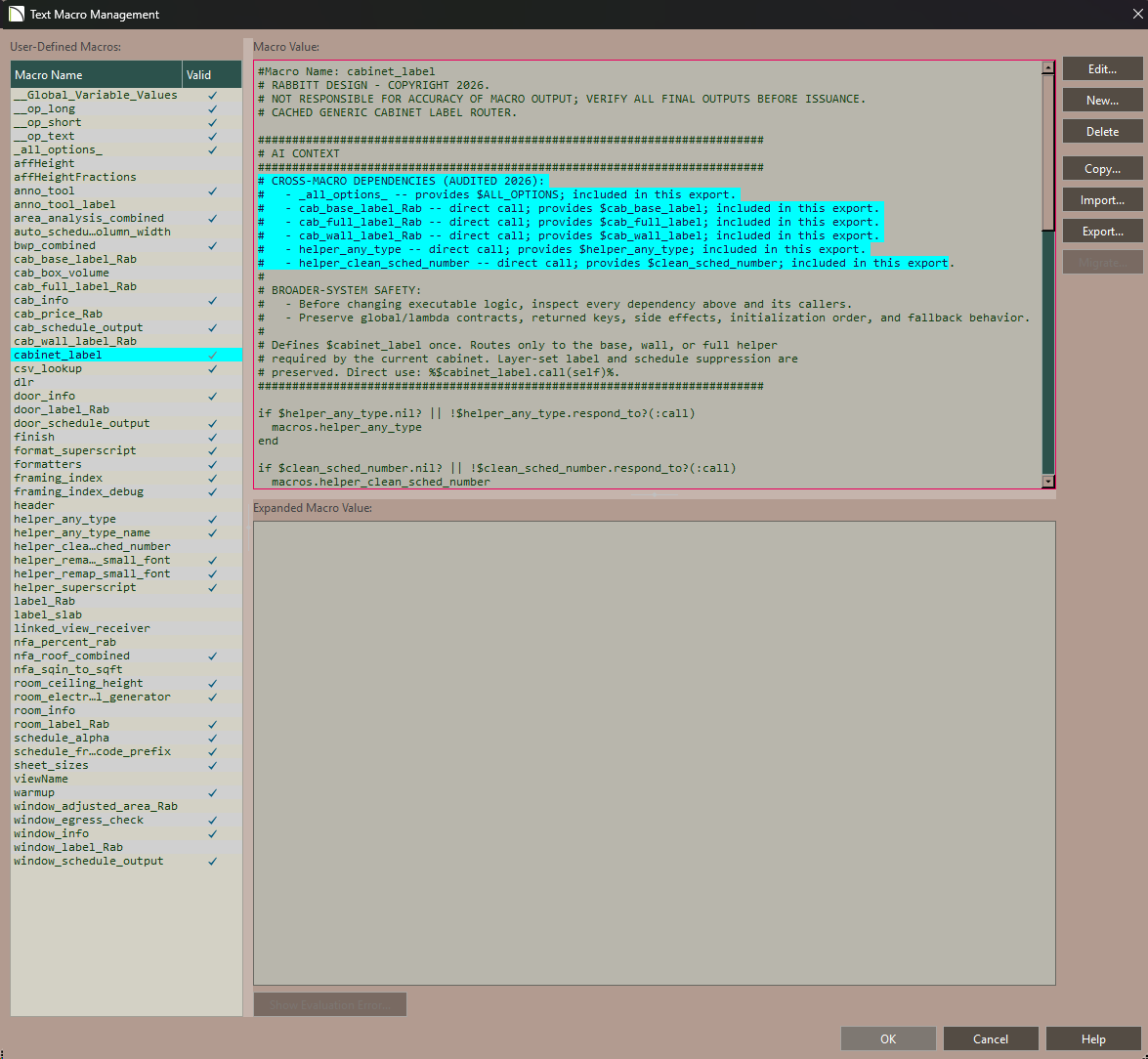
These notes are the breadcrumb system. They help prevent a change to one macro from silently breaking a helper, label, schedule, or other macro that relies on its existing output.
2. Export the connected macros
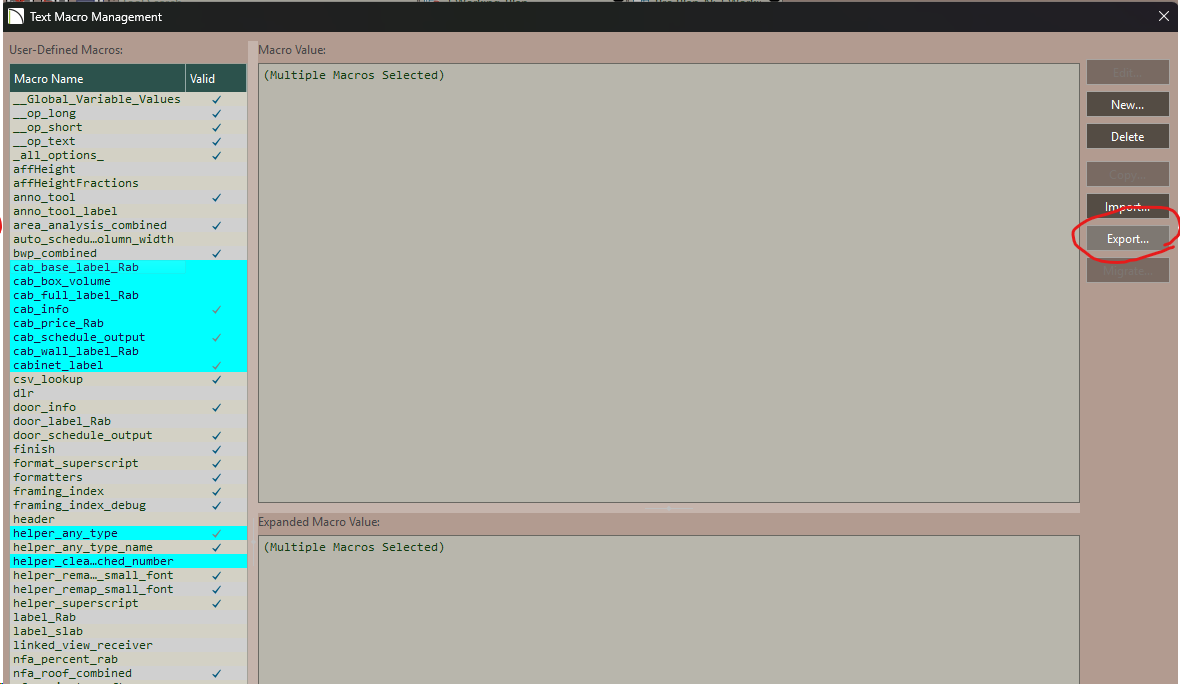
In the Macro Name list, Ctrl-select or Shift-select the starting macro and all related macros identified in its notes.
Click Export. Chief Architect writes the selected group into one JSON file.
Keep an untouched copy of this original export so you can restore the working macros if the modification does not behave as intended.
3. Ask AI to make the limited change
The exported macros contain instructions and dependency context intended to help an AI editor understand the system. Provide the JSON file and describe the exact behavior you want changed.
Tell the AI to preserve every macro name, dependency, global or lambda contract, returned key, side effect, initialization order, and fallback behavior. Ask it to change only the requested behavior, return one complete valid JSON file, list every macro it modified, and state whether it changed any core function beyond your request.
4. Reimport and restart
Return to Text Macro Management and click Import.
Choose the revised JSON file and allow it to overwrite the existing macros in the test plan.
Close and restart Chief Architect before testing. Restarting clears global values that may still be cached from the earlier macro evaluation.
5. Test the entire connected feature
Do not test only the one label or object that motivated the change. Check the feature across the full breadth of PPX18 wherever the edited macro group is used.
For example, after modifying the cabinet-label system, restart Chief Architect, draw a quick kitchen, and test base, wall, full-height, corner, appliance, and other relevant cabinet types. Review plan labels, saved plan views, schedules, and any related output. Compare the results with the AI's change report and confirm that no core behavior changed beyond what you requested.
Once this workflow is familiar, the export, AI edit, import, and restart can take only a few minutes. Verification should still be thorough before the revised macros are used in production work.
Partially applicable: this export, AI-edit, import, restart, and testing workflow applies only to macros that are actually included in Essentials.
Essentials package: a stripped-down working plan, companion As-Built file, Title Block and Spec Plan, plus Rexel ANSI B (11 × 17) and Rexel ARCH D layouts. It includes no PPX18 toolbars or library items.