

Performance Optimizations
How PPX18 reduces model, texture, rendering, and macro overhead
PPX18 has undergone extensive macro rewrites to substantially improve the Pro Plan's performance inside Chief Architect. Repeated calculations were simplified and reorganized so the automatic labels, schedules, and documentation systems place less unnecessary demand on an active project.
Built-in model optimization
Supplied library objects are designed with controlled polygon counts and limited vector-line complexity. Textures are sized and compressed to balance visual quality, memory use, plan navigation, and rendering speed. These optimizations are intended to keep the model responsive without giving up the presentation quality expected from PPX18.
Reduce 3D Cladding lag
Chief Architect's 3D Cladding feature may create noticeable lag on some computers, with Macs generally affected more often than PCs. PPX18 uses 3D Cladding for selected wall and roof surface components to produce their modeled finish.
Walls
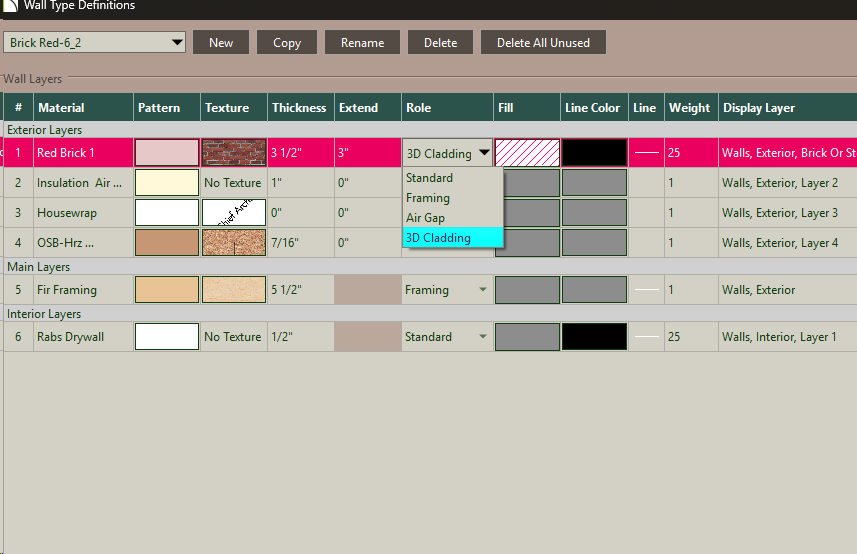
Open Wall Type Definitions and select the wall type that is slowing the model. In the wall-layer table, locate the finish layer whose Role is set to 3D Cladding. Open the Role menu and change that layer to Standard. Repeat this only for the wall types whose cladding is contributing to performance problems.
Roofs
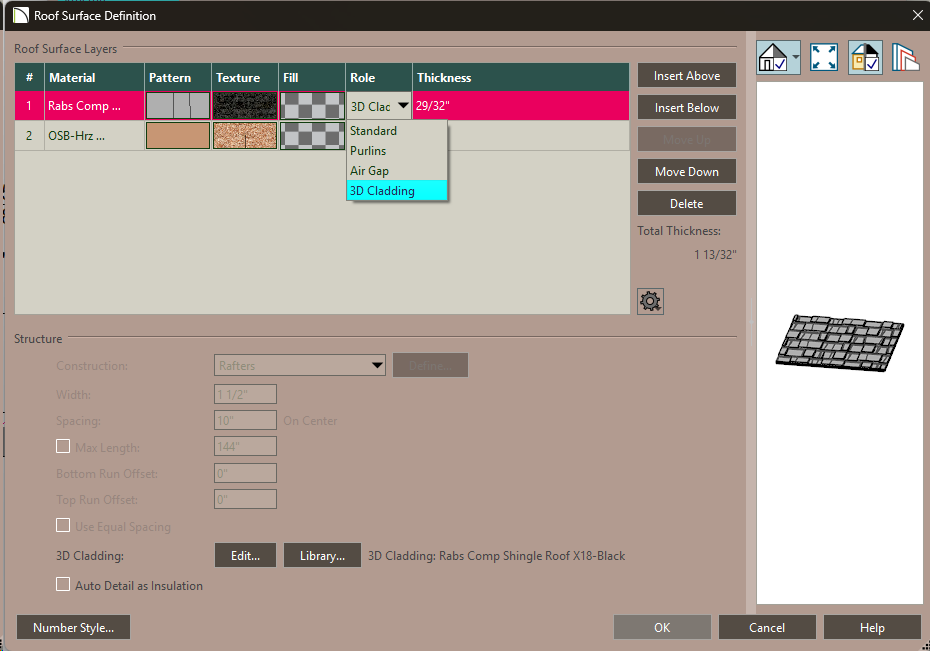
Open the roof dialog and go to Roof Surface. In Roof Surface Definition, locate the finish layer whose Role is set to 3D Cladding. Open the Role menu and change it to Standard. This removes the 3D Cladding behavior from that roof surface while preserving the roof layer as a standard material layer.
Camera and rendering performance
Rendering speed still depends on the computer, graphics card, scene complexity, image resolution, lighting, and active rendering settings. Use performance-oriented camera settings while designing, then increase sample quality or resolution only for final images. The embedded video provides a practical walkthrough of the recommended optimization approach.
Applicable: these general plan and rendering performance recommendations remain useful.
Essentials package: a stripped-down working plan, companion As-Built file, Title Block and Spec Plan, plus Rexel ANSI B (11 × 17) and Rexel ARCH D layouts. It includes no PPX18 toolbars or library items.