
Toolbars
Using, changing, and customizing toolbar configurations
Understanding how Rabbitt toolbars work
The Rabbitt Design Pro Plan and Full Library Bundle include a preconfigured toolbar layout that places the Rabbitt tools directly in your Chief Architect workspace.
Changing toolbar configurations
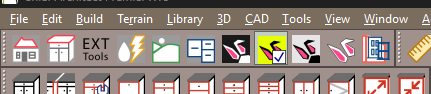
Click the configuration buttons in the top-left of the Chief Architect window to change configurations. The highlighted button shows the configuration that is currently active.
Before installing
Installing the Rabbitt Design toolbar configuration can overwrite toolbar customizations you previously created in Chief Architect, including repositioned toolbars, added buttons, and saved configurations. Save or back up a custom setup before installation if you want to keep it.
Editing a toolbar
To make further changes, open Tools > Toolbars & Hotkeys > Customize Toolbars. From there, you can add, remove, or reposition tools for your workflow.
Not included: Essentials does not include the PPX18 toolbar configurations.
Essentials package: a stripped-down working plan, companion As-Built file, Title Block and Spec Plan, plus Rexel ANSI B (11 × 17) and Rexel ARCH D layouts. It includes no PPX18 toolbars or library items.